To many, movies/video subtitles are imperative, even when you are a native speaker of the language by which the movie was shot. According to Wikipedia Subtitles are text derived from either a transcript or screenplay of the dialog or commentary in films, television programs, video games, and the like, usually displayed at the bottom of the screen but can also be at the top of the screen if there is already text at the bottom of the screen. Not all Android media players support manually loading and activating movie subtitles. That is why, in this article, we shall be discussing how you can download & activate subtitles for Android devices.

Movies Subtitle Constraints on Android Phones
Apparently, the Android operating system already supports many video codecs out of the box. In addition, some default video players, such as the one on Samsung Galaxy phones with Android version 9 and newer, support loading movie subtitle files. However, default media players don’t support all types of subtitles. They don’t support loading of most downloaded subtitle files. This is where a good 3rd-party video player comes in handy. In the next section, I will list the four best Android media players that support video subtitles. These players support popular subtitle formats. At the end of the review, I will review the very best and teach you how to activate your subtitle using it.
4 Best Android Media Players That Support Movie Subtitles
1. VLC Media Player for Android

- VLC is the only popular video app that has all its codecs inbuilt. In other words, you don’t need to download any additional plugins.
- VLC has support for multi-track audio
- Movies subtitles.
- It supports auto-rotation,
- aspect-ratio adjustments, and gestures to control volume, brightness, and seeking.
- It can also play some obscure video formats, like DVD ISOs.
2. MX Player & MX Player Pro For Android

Basically, the major selling point of MX player is its ability to play any subtitle file format. But the major concept behind this tutorial is to teach you how to load any format of subtitle files on your Android phone. After my careful research, as usual, I discovered an Android application that can play all formats of videos on your Android and load all formats of subtitles for your movies. This player comes in both free and paid versions and the only difference between the paid and the free version is in the ads display. Am talking of none other players than MX Player.
Description
MX Player – The best way to enjoy your movies.
a) HARDWARE ACCELERATION – Hardware acceleration can be applied to more videos with the help of a new H/W decoder.
b) MULTI-CORE DECODING – MX Player is the first Android video player that supports multi-core decoding. Test results proved that dual-core device’s performance is better by up to 70% than single-core devices.
c) PINCH TO ZOOM – Easily zoom in and out by pinching and swiping across the screen.
d) SUBTITLE SCROLL – Subtitles can be scrolled to move back and forth faster.
e) KIDS LOCK – Keep your kids entertained without worrying about them making calls or touching other apps. (plugin required)
f) ANDROID 4.2 – Fully supports Android 4.2 Jelly Bean MR1.
MX Player Supports the Following Subtitle Formats:
Subtitle formats:
– DVD, DVB, SSA/ASS subtitle tracks.
– SubStation Alpha(.ssa/.ass) with full styling.
– SAMI(.smi) with Ruby tag support.
– SubRip(.srt)
– MicroDVD(.sub)
– VobSub(.sub/.idx)
– SubViewer2.0(.sub)
– MPL2(.mpl)
– TMPlayer(.txt)
– Teletext
– PJS(.pjs)
– WebVTT(.vtt)
3. MoboPlayer

MoboPlayer prides itself on featuring the best playback experience and quality.
Features of MoboPlayer video player
- All video formats (need to choose “software decoding” mode in most cases)
- Popular subtitle formats such as SRT, ASS, and SAA
- Subtitles built in MKV, MPV, MOV, and others
- Multi-audio streams and multi-subtitles
- Playlists and continuous play on same type files
- Videos streamed through HTTP, RTSP protocols
- Media libraries and sort videos by type
- Thumbnail displays of videos
4. Archos Video Player

Features of Archos Video Player
– Play videos from your computer/server / NAS (SMB, UPnP)
– Play videos from external USB storage
– Videos from all sources seamlessly integrated into a unified collection
– Automatic online retrieval of Movie and TV show descriptions with poster and backdrop
– Integrated subtitle download
– Hardware-accelerated video decoding for most devices and video formats
– Multi-audio track and multi-subtitle support
– Supported file formats: MKV, MP4, AVI, WMV, FLV, etc.
– Supported subtitle file types: SRT, SUB, ASS, SMI, etc.
How to Auto-Search & Auto-Download Movies Subtitles
You can download the subtitles for any given movie or TV series in two ways. The first method is via a subtitle website, while the second is through an Android app. I always prefer the automatic method which is downloaded through a trusted Android app.
How to download your subtitle via an Android App
Before you record any success doing this, you may need to first rename your movie to the exact name given to it by the movie producer. For example, if you are having problems searching for the subtitles for “POP”(Prince of Persia), why not rename your file to “prince of Persia” and see what happens?. Renaming your movie or TV series to the appropriate name hasten the search for the right subtitle.

Subtitles application scans video files on your external storage and helps you search and download subtitles to movies and TV shows.
Subtitles features:
• Automatic subtitles download
• Subtitles formats: srt, sub, gsub.
SubLoader Full Version( Cost aroudn $6 one-time payment) They are tested and trusted


SubLoader Full by MB Judri Lenta helps you search and download subtitles for your movies and TV shows in just 2 clicks.
This application scans your phone for video files and allows you to search and download subtitles for any selected video.
Full version features
- Network shares (SMB)
- Manual Search
- Auto-download
- Ad-free
General Features
- List the videos found in your phone
- Filter on selected folders or on the whole SDcard
- Multiple video formats supported
- Search for subtitles on OpenSubtitles.org and Subscene.com (more to come)
- You can search for multiple languages at the same time (45 languages supported)
- Search for Perfect Match subtitles
- Download subtitles and pair them with the video file
- Launch the video with the downloaded subtitles in one click
Sub Loader – download subtitles for movies and TV
This subtitle downloader app scans your phone for video files and allows you to search and download subtitles for any selected video.
Features
- List the videos found on your phone
- Filter on selected folders or on the whole sd card
- Multiple video formats supported
- Search for subtitles on OpenSubtitles.org and Subscene.com (more to come)
- Download subtitles and pair them with the video file
- Search for multiple languages at the same time (45 languages supported, including English subtitles)
- Search for Perfect Match subtitles
- Launch the video with the downloaded subtitles in one click
Especially Relevant:
Some of the Best Sites to Download Movies Subtitles
Below is the list of selected websites where you can download subtitles in any language for your movies, shows or tv series.
How to Download & Activate Subtitles for Android with MX Player
- Step 1, download MX player from google play store. Then Install it.
- After installation, launch the app and it will display all the folders on your phone that contains videos. See image below:

- Next, choose how you want to get your subtitle file loaded. You can get this in three ways. It is either it comes bundled with your disc or yu download it manually or get it automatically via MX player or similar app. If you opt to download your subtitle manually, Copy the downloaded subtitles to a known folder in the root of your sd card
- Now, a select option which is on the top right corner(represented by 3 horizontal dots). See image below:

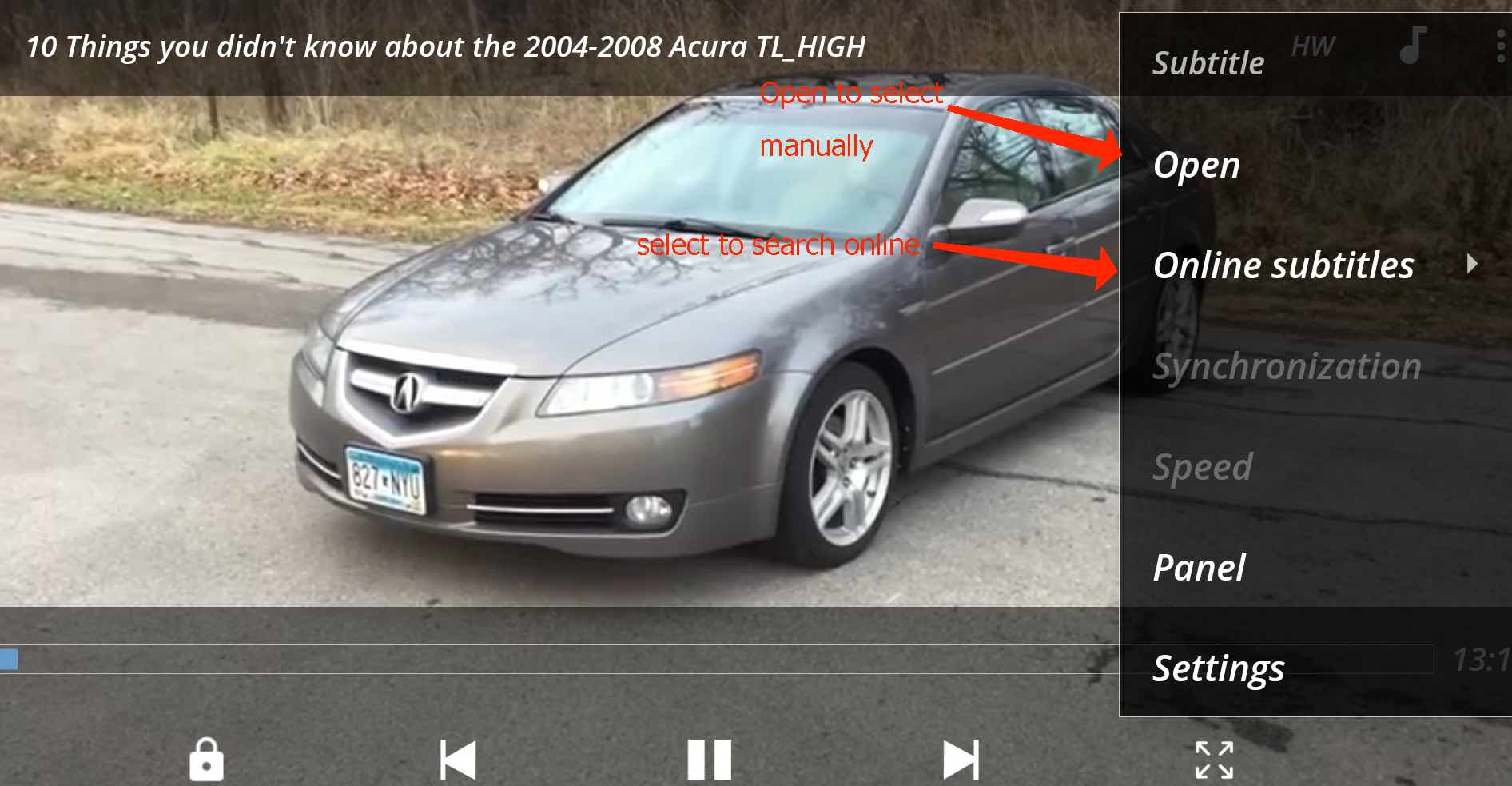
- You will have the option to either open an existing subtitle file or search online for the subtitle for your movie. See below:

- Since I usually go the manual download route, I simply load my pre-downloaded subtitle file. I prefer the .srt subtitle file above every other one. Your subtitle file may take on a different extension such as .smi, .psub, .sub. ssa, ass, .txt, .vtt, and so on. just select and click okay.



- Hurray! The subtitle will automatically reflect in the movie.
Final Thought
Some downloaded subtitle files suffer from audio latency. This is a situation whereby the subtitle is not perfectly in sync with the characters’ words in the movie/program you are watching. Maybe the words are faster than the subtitle or vice-versa.
You can try restarting the program or pause and play the video as a workaround. If this doesn’t fix it, it is time to download the subtitle from another source. In rare cases, the hardware acceleration of your media player may be causing this issue. Try turning it off if you already enable it.
Another major problem encountered by users of downloaded subtitles is wrong subtitles. Well, this is the handiwork of scam sites. The only solution is for you to use either the inbuilt subtitle downloader of your player or a trusted app from my list above.
Hey Lemmy! I appreciate your efforts to write this helpful blog. I am using MX Player and VLC, both. But I like the VLC player more than the MX player because it has very easy UI, and also I found the way easy to add subtitles in it. Thanks for sharing it. Please share more articles as similar to this one.