Personal/private data leakage is the most dreaded thing that can happen to any mobile phone and computer user. Obviously, In the next few months, many new phones will be launched, so users who want to change their phones should pay attention. Technically, resetting your phone to factory default from within the phone’s settings doesn’t guarantee the safety of your data. In this post, I will teach you 2 actions before changing your phone. These steps will ensure that all your private data is permanently gone from the old phone.
2 Actions to take before Changing Your Phone
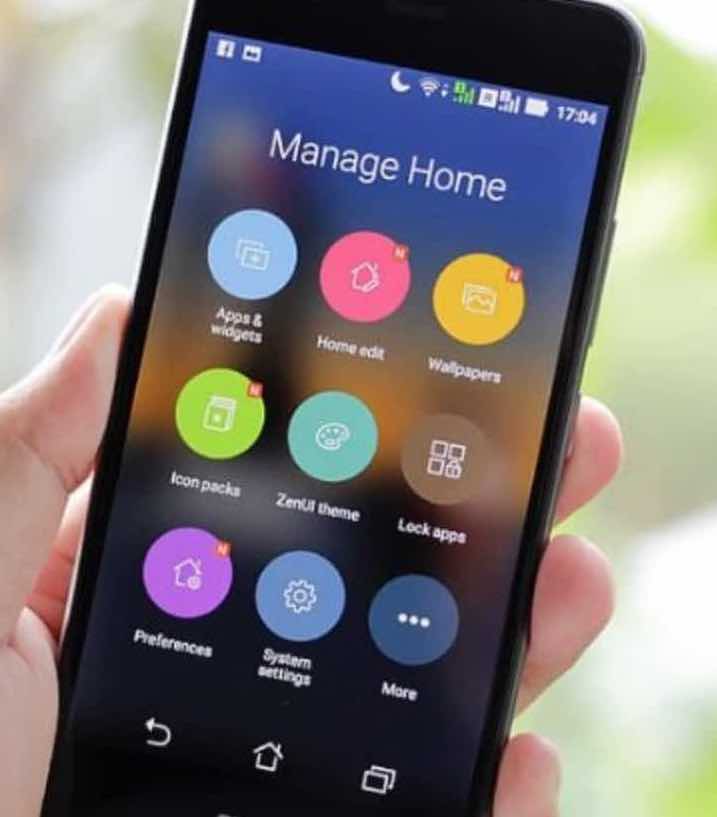
Usually, when we buy a new mobile phone, we will migrate the important data of the old mobile phone to the latest mobile phone and then delete all the private data in the old phone or restore the phone factory settings.
However, this method cannot completely delete the data. Also, restoring the factory settings only cleans up the phone memory data and leaves out the SD card data.
For instance, if you use data recovery software, you can still restore some data, such as WeChat chat history, QQ chat history, Call records, text messages, contacts, multimedia files, and other data.
Must Read: Top Satellite Tv Signal encrypting/Conditional Access Companies and Their Client base
Many users also worry that criminal elements(hackers/scammers) will collect and use the data if the device is resold without being cleaned up properly.
As a matter of necessity, the following two steps must be done to deal with old mobile phones to avoid data leakage!
Step 1: Clear all Data Only After Encrypting the Phone

If you are using a Samsung Android phone with Android OS 7.1 and above, you can use the Samsung secure folder app to secure and encrypt your private data.
Alternatively, follow the steps below:
Open the mobile phone [Settings], and click [Password/Biometric and Security].
2. Select [Security]-[Encryption and Credentials]-[Encrypted Phone].
PS: Generally, there is encryption and credential in the mobile phone. in some phones, you can only encrypt the external SD card data. if that is the case, go ahead and do so, then jump to the next step
3. The phone pops up on a page. Read carefully and follow the instructions. Please plug in the charger and try again]. Now, click to encrypt the phone and wait for the phone to restart automatically after the encryption.
How to Completely Wipe Your Phone’s Data on Androids Via Recovery Mode
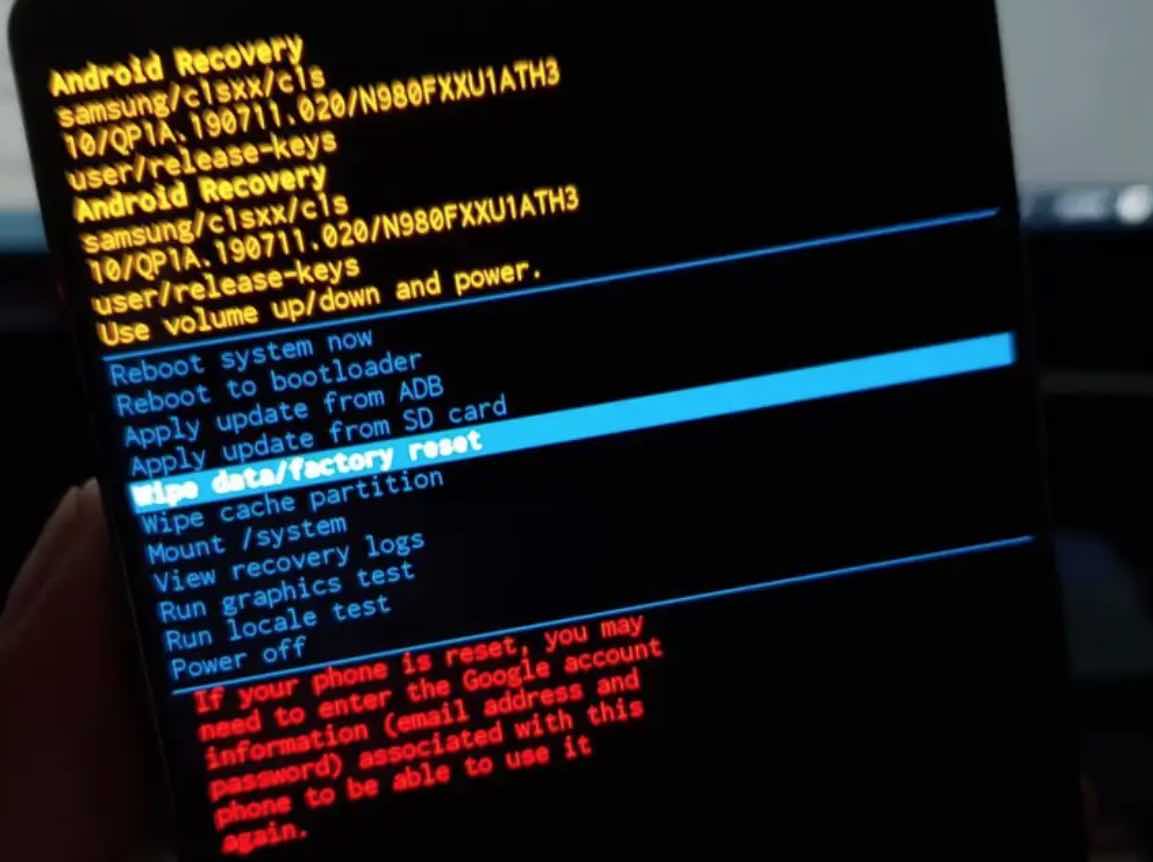
Wiping your phone memory via recovery mode is better than factory resetting it from within the phone’s settings. In recovery mode, you can wipe the cache before wiping the data. You can get into your Android phone’s recovery mode by pressing some buttons. You can use Google to search for the button combo that works for your phone.
Meanwhile, the image steps below give you an idea of what to do.
After encrypting the phone, you must start clearing the mobile phone data.
- First off, you need to turn off the phone.
- Next, you need to press [Volume Key +] and [Power Key] to turn it on until the power-on logo appears on the phone screen, then release the Power Key but keep pressing the [Volume Key +].
- Only one can let go when the [Phone main menu] page appears.
- You will see a line that reads “[Clear Data]. Click on it to proceed to [Clear All Data]-[OK], and then wait for the completion of the cleaning.
- return to the [Main Menu]
- select [Restart phone].
After completing the above two steps, even if someone else restores the data through special means, they can only get a bunch of messy and useless data fragments.
Step 2: Data Overwrite
This second step is very important to avoid leaving anything to chance. You may be okay with just the first step if you don’t have any data that need not get into the wrong hands.
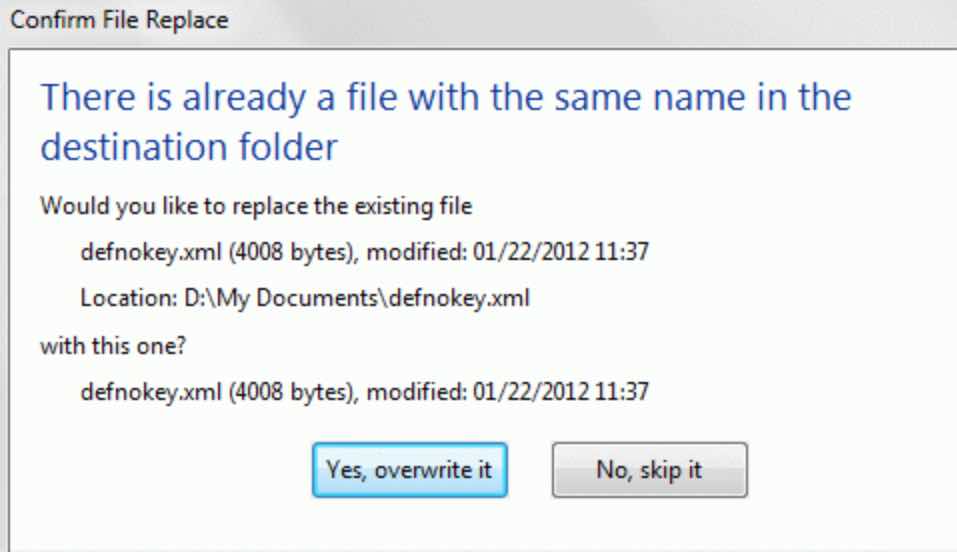
In order to prevent falling victim of guys who use special software to restore data, we should overwrite entirely the original data. which means that after clearing all data, re-store a large amount of data in the phone’s memory and “write to the original memory area.” The “overwrite” operation principle is the same as that of computer disk data overwriting.
Simple Steps to Overwrite Your Android Phone Before Selling It Off
This method is also very simple. The easiest way to go about it is for you to turn on the mobile phone video recording function,

- set [Recording Settings]-[Recording Bit Rate] to the highest (the higher the video bit rate, the larger the file).
- Now, Record random videos continuously until you use your phone’s available memory. Then delete it after recording.
- This way, the original mobile phone data can be overwritten!
The above teaches you how to clean up your old mobile phone. Different brands of mobile phones may have different options, but the operation is similar.
Leave a Reply